How to send a test certificate in Sertifier before your campaign
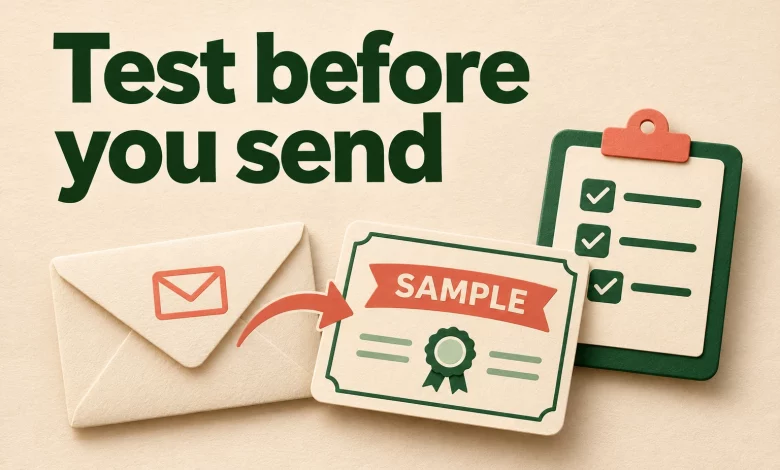
A test certificate lets your team inspect the message and credential journey before sending a campaign to its real recipients. Use it to catch an incorrect title, an unresolved attribute or a confusing link while the campaign is still being reviewed.
This guide explains the documented Sertifier test-send feature and suggests a practical review record. A successful test is evidence about that particular sample. It does not prove that every recipient row is correct or that every email provider will deliver the live campaign to an inbox.
Send a test credential from your campaign
Prepare the campaign’s design, credential details, email and recipient data, then open Preview & Send. The Sertifier campaign guide documents this test route:
- Choose Send a Test Credential.
- Enter your own email address or an authorized colleague’s address.
- Supply the sample attribute values needed for the test, such as the recipient name and course title.
- Send the test, open its email and follow the link to the credential page.
Use controlled sample information instead of sending a learner’s personal details to an unrelated mailbox. Keep the live campaign send separate from the test action.
Sertifier’s documentation states that the resulting page carries a test banner. Test credentials are deleted after two weeks, do not consume the recipient limit and do not appear in campaign analytics. These are properties of the test feature, not of an ordinary live credential issued to a staff member. See the same test credential instructions before relying on retention or usage behavior.
Decide what the test needs to answer
Write down the question before sending. “Does it look fine?” is too broad to support a release decision. More useful questions include:
- Does the subject identify the correct course and issuer?
- Does the sample name render as intended in both the message and credential?
- Does the main email action open the matching sample credential?
- Can a reviewer read the achievement and support instructions on a phone?
- Is an optional field absent cleanly, rather than displayed as an unresolved token?
The credential preview documentation describes reviewing the email and credential before sending. Use that preview together with the received test. The editor canvas and a message opened in an email application are different viewing contexts.
Inspect the email and destination together
Read the received message from top to bottom before opening the link. Check the visible sender, subject, achievement wording, personalized values and primary action. If you need to rewrite the notification, use the separate certificate email templates rather than adding marketing copy during the final review.
Next, open the credential from that message. Compare the displayed name, issuer, achievement and relevant dates with the sample values you intended. Confirm that the test banner is visible. Review any supporting links you configured and make sure they lead to the intended material.
Repeat the visible journey on a desktop and an actual phone or mobile-device test environment. Check whether the message remains readable, the action is usable and the credential details fit the screen. A page that merely loads has not necessarily passed a usability review.
For a design with long names or changing text, use the dedicated certificate template testing checklist. Keep its detailed layout cases separate from this test-send record.
Keep a short test record
Test review: sample values → received email → matching credential → recorded decision
The following is a suggested internal review template, not a Sertifier analytics export. Record observations while the temporary test credential is available. Keep any screenshots private and remove unnecessary personal information.
- Campaign and version: identify the configuration reviewed, including any changes since the previous test.
- Sample: record the fictional attribute values and the authorized test destination.
- Environment: note the email application, device and observation time.
- Message result: describe the sender, subject, personalization and action observed.
- Credential result: record the matching details, test banner and destination checks.
- Decision: mark ready for the separate live review, needs correction or not yet verified. Assign unresolved issues to an owner.
Do not record “passed” when a reviewer has only confirmed that a test was sent. The evidence should describe what they actually opened and checked.
Example: an attribute error caught before release
Consider a fictional workshop called Introduction to Project Planning. The reviewer sends a test with the name Sample A and the approved workshop title.
The email arrives, but its subject still refers to an older course. The credential page shows the correct workshop. The result is needs correction, because the notification and award disagree even though the link works.
The team corrects the subject, sends a new test and records that the message and credential now identify the same workshop. That closes the subject-line issue for the reviewed version. It does not approve the real recipient list or establish that those people completed the workshop.
If the design, email or credential details change again, repeat the affected checks. Do not attach an earlier successful test to a materially different campaign configuration.
Know what a successful test cannot prove
It is not a recipient-list audit. Manually entered sample attributes can be correct while the uploaded cohort contains a misspelled name or incorrect mapping. Review the intended live records separately.
It is not a delivery guarantee. An email received in one test mailbox does not establish delivery to every organization. Sertifier’s missing-email guidance identifies incorrect addresses, spam filtering and institutional email controls as possible issues. Use the credential email delivery guide for that investigation instead of treating repeated test sends as a diagnosis.
It is not evidence of engagement or a real award. Keep the test outside live achievement and outcome reporting. Do not present a sample as proof that a learner earned a qualification.
Finish with a separate live-campaign check
Before the real send, confirm the intended campaign, approved achievement, actual recipient list, field mappings, email settings and delivery timing. Resolve anything the test did not establish. A reviewer should be able to explain both why the sample passed and why the live cohort is eligible to receive the credential.
If you already use Sertifier, open your campaign’s Preview & Send stage and prepare a controlled test. If you are setting up a workflow, create your Sertifier account and use a sample before your first live campaign.