Certificate recipient onboarding: a first-use checklist for training teams
A certificate recipient onboarding guide explains what to do after an award arrives: open the credential, check the details, keep a reliable route back to it and decide whether to share it. For a training team, this can be a short page linked from the course completion screen rather than another long email.
The checklist below is a suggested communication workflow. It is not a new Sertifier feature, a requirement to create a wallet or a promise that sharing will improve employment outcomes.
Give the recipient one clear starting point
Begin with the credential itself. State the issuing organization and the program or achievement, then give the approved route for opening the recipient’s credential. Do not substitute a generic product signup page for an awarded credential link.
Keep this guidance available where learners already look for course information. A completion page or your existing learner help area can provide a fallback when someone cannot find the notification. Include an issuer contact route that does not require possession of the missing credential.
If you need the notification wording, use the separate certificate email templates. This page explains the first-use journey after that notification, not email configuration or delivery troubleshooting.
Ask recipients to check the claim before using it
Invite the recipient to compare the displayed name, issuer and achievement with what they expected to receive. Where dates or completion requirements are shown, explain what they mean in your program. Do not imply that attendance, course completion and assessed competence are interchangeable.
Make the correction route explicit. Sertifier’s issuer-contact documentation directs recipients to the issuing organization for missing credentials, name errors and changes to credential details. The Contact icon beside the issuer name on the credential viewing page leads to the issuer’s email contact route.
Your welcome guide should point to that route without promising an immediate correction. Your internal team can use the certificate support intake guide to review the request and assign an owner.
Explain how to return to the credential
Tell recipients to keep the approved credential link in a place they can find later. If you recommend downloading, adding a credential to a profile or using another storage method, first test that exact option in your program and describe the controls actually available.
Do not promise permanent access, universal wallet compatibility or acceptance by every employer. A saved image and an online credential page serve different purposes. Describe the route your team supports and where recipients should ask for help if it stops working.
For a program evaluating wallets, keep the technical compatibility work in the separate digital credential wallet checklist. Recipients do not need a procurement checklist in their welcome instructions.
Make public sharing a choice
Put sharing after access and accuracy. Invite recipients to consider where the credential is relevant and what information the destination will display. Do not make a public post a condition for receiving an award unless that is an explicit, appropriate program requirement established beforehand.
Use the credential’s actual achievement wording when suggesting profile text. Avoid turning a participation certificate into a professional certification. A sample description might say, “Completed [program name] with [issuer name],” but only when completion is the award recorded.
A recipient who chooses not to share has not failed onboarding. They may need the credential privately, plan to use it later or decide that a public profile is not the right destination. Do not infer motivation from a missing sharing event.
A welcome card you can adapt
These bracketed fields are writing placeholders, not automatic product attributes. Replace them with reviewed program instructions.
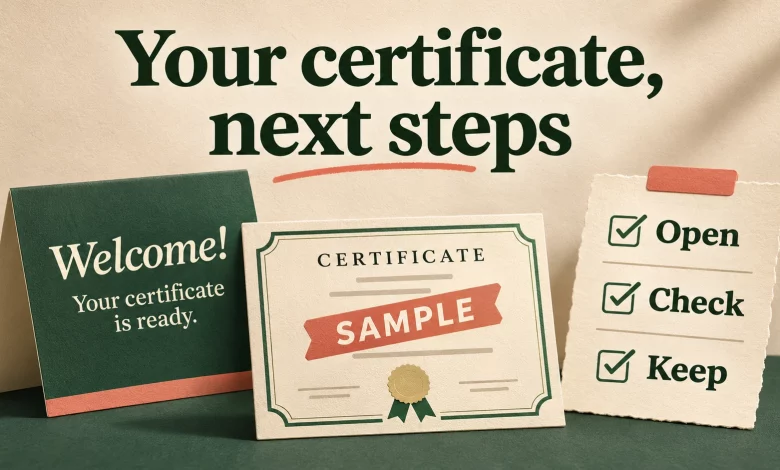
Your certificate: next steps
Open your credential using [approved access route]. Check your name, the issuer and the achievement shown.
If a detail is incorrect or you cannot find your credential, contact [issuer support route]. Include [program name] and a description of the issue. Do not send passwords.
Keep the credential link somewhere you can find it again. If you choose to share it, review the information visible at the destination and describe the achievement accurately.
For a fictional workshop, the facilitator could place this card beside the completion instructions and walk through it with a SAMPLE credential. The demonstration should use fictional participant details, not a learner’s public page projected to the whole group.
Rehearse the journey before the cohort finishes
Use a controlled sample to check the welcome instructions from the recipient’s perspective:
- Start from the completion page or message, not an administrator’s dashboard.
- Open the intended credential and compare its issuer and achievement with the instructions.
- Read the name-check and correction guidance without relying on internal terminology.
- Follow the supported route for returning to the credential.
- If sharing is recommended, inspect what becomes visible and whether the suggested achievement text is accurate.
- Check the actual phone experience as well as the desktop experience. A successful link check alone does not establish that the page is usable.
Record any failed step and give it an owner. Keep unresolved notification delivery separate from credential access: a recipient may reach the credential through your approved fallback while the email issue remains open.
Evaluate the instructions without inventing outcomes
If your team collects feedback, ask which step was unclear and whether the recipient reached the intended credential. Use only events your systems actually measure. Page visits, downloads and public shares are different observations; none alone proves that a recipient understood the award or gained a professional benefit.
Choose your review window before comparing cohorts, document changes to the instructions and preserve unknown outcomes as unknown. There is no universal sharing percentage that establishes whether this welcome guide worked.
Prepare a sample journey in Sertifier
Create your Sertifier account to prepare your credential workflow. Start with a clearly marked sample and a short welcome card, then review the recipient journey before using your approved live cohort.