Certificate background uploads: prepare artwork and editable fields
A custom certificate background should carry the fixed artwork while recipient-specific information stays in editable fields. Before uploading a finished design, remove sample names and dates, match the intended canvas, and decide which text belongs in the credential designer. This prevents an attractive sample from becoming a template that repeats the wrong information for every recipient.
This checklist is for training teams handing an existing design to the person who will issue certificates. It covers file preparation and sample review, rather than choosing a visual style from scratch.
Separate the artwork from the recipient data
Review the original design with its owner. Mark each element as fixed artwork, shared text or a value that changes by recipient. Keep the editable source file as well as the export; fixing a flattened image later can mean rebuilding it.
- Fixed artwork: approved borders, background shapes and organization artwork that should remain consistent.
- Shared text: wording that genuinely applies to the entire intended campaign. Decide whether to keep it in the artwork or create it as editable text, but avoid placing it in both.
- Recipient-specific values: names, individual dates and other changing details. Leave space for the appropriate attributes instead of embedding a sample value in the image.
Sertifier distinguishes ordinary text fields from attributes. Its text-field guide explains that text fields are not filled automatically. Use the appropriate attribute when the content must come from recipient data, then test that mapping with synthetic records.
Match the file to the selected canvas
The credential design guide lists SVG, PNG, JPG and JPEG as accepted certificate formats, a maximum file size of 1 MB, and A4, Letter, Legal and 16:9 presets. It instructs users to choose the size preset before uploading and match the artwork to that orientation and ratio.
Check the current designer before exporting. If the intended layout is portrait, do not stretch a landscape export to fill it. Ask the designer for a matching version or deliberately revise the composition. Keep important text away from edges and inspect the actual output rather than assuming that a correctly sized source guarantees readable results.
A PDF is not among the certificate upload formats listed in that guide. If the handoff contains only a PDF, obtain an appropriate export from the design source. Renaming a file extension does not convert its contents. After any conversion, inspect the resulting artwork for lost elements or changed lettering.
Decide how uploaded fonts will be handled
Sertifier’s custom design upload guide warns that an SVG using a font absent from its designer can appear in Times New Roman. The documented options include using an available font, rasterizing the lettering, or leaving text out of the uploaded artwork and adding it in the designer.
Choose deliberately. Flattened lettering may preserve its appearance, but it no longer serves as an editable recipient field. For names and other variable details, reserve space and use the supported designer controls. For fixed lettering, compare the uploaded result with the approved source and keep the original editable file for future changes.
Do not approve an upload solely because the file opens. Look for changes in letter shape, line breaks, spacing and alignment. A font substitution can change how much room a heading occupies even when the wording is unchanged.
Use a clear design handoff
Give the issuer one approved export and a short accompanying note. Avoid a folder of similarly named alternatives with no indication of which one should be used.
- Approved file and source: identify the export version and where the editable original is maintained.
- Canvas: state the preset and orientation the artwork was prepared for.
- Fixed content: list any wording already embedded in the background.
- Editable content: identify the fields the operator must add and the source of each changing value.
- Review owner: name the internal role responsible for approving layout changes.
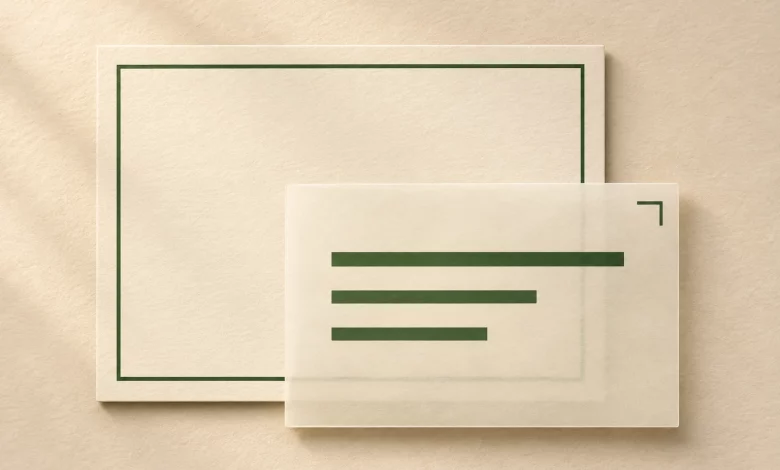
For example, a fictional workshop team supplies a cream background with a border and fixed issuer artwork. The center is intentionally empty. The operator adds the recipient-name attribute and approved course wording in the designer. A sample name printed into the background would defeat that separation, even if the real name were added on top.
Review a sample before preparing the cohort
Upload the prepared design using the documented Upload Design control, add the planned fields, and save the design. Start with a synthetic sample. Do not use an actual participant’s record merely to inspect a layout.
- Compare with the source. Confirm that borders, artwork and fixed lettering have survived the upload without distortion.
- Look for duplicate text. Check that a sample name, date or course title is not still visible underneath the editable field.
- Test changing values. Try a short and a long fictional name and any relevant characters. Use the template data-fit checklist for deeper variable-field testing.
- Inspect the recipient output. Review the credential and its downloadable form where available. Check readability on desktop and a phone, not just inside the design editor.
- Keep the approved version. Record the selected design and sample result before preparing the live campaign.
If your certificate includes a QR code, use the separate QR print-testing checklist. A visually clear background does not establish that a printed code scans successfully.
Fix the layer responsible for the problem
If the same incorrect name appears on every sample, inspect the background and shared text before changing recipient data. If only one sample is wrong, compare its source values and field mapping. If lettering changes immediately after upload, review the export and font handling before compensating with extra text boxes.
For a design already associated with issued credentials, stop and review the scope before replacing it. This preparation checklist is not permission to change previously issued awards. Keep a new sample review separate from any approved change to a live campaign.
Questions before uploading
Should I upload the entire finished certificate as an image?
Only fixed content belongs in a reusable background. Remove participant-specific values and add the appropriate editable fields so the next recipient does not inherit the sample’s details.
Does SVG mean the fonts will always look identical?
No. Check the font-handling options in Sertifier’s upload guide and inspect the actual imported design. The file format alone does not establish visual fidelity.
Is a successful upload enough to start issuing?
No. Review a sample with changing values, verify the intended recipient output and confirm the approved campaign details before using a real cohort.
Prepare your first sample
Create a Sertifier account, prepare an approved background and test it with fictional recipient details. Keep the fixed artwork, shared wording and variable fields clearly separated before your first live send.